Showing posts with label pc tips and trick. Show all posts

Sunday, 24 November 2013

Download Flash Games Easily With This Trick Website Like (Miniclip,zapak etc)

Hello. 
After Long Time Today I am going to show you an easy way on How to download games from

And other Flash sites.
You only need an internet browser(any). 
So , let's get started.

Step-1

First go to miniclip.com and choose a the game you want to download. For this tutorial, I chose Monster Trucks Nitro 2

Step-2

Once you are on the game page, right click on the page(somewhere empty) and click view page source

Step-3

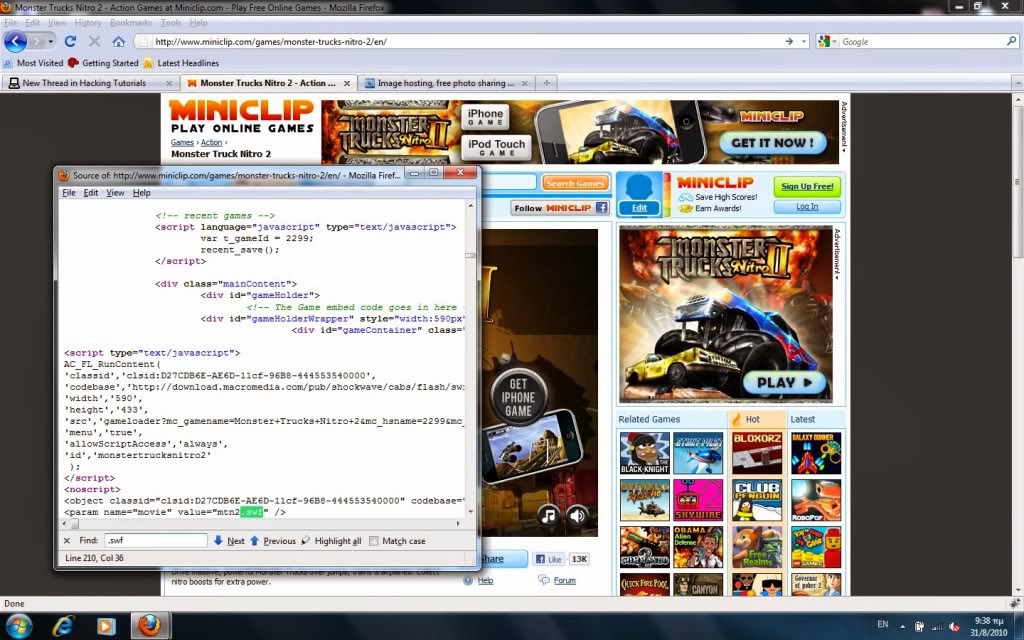
A window will pop up showing the source of the page.
Press CTRL+F and Find Box will pop up.
Type .swf and then press Search.
BOOM! You just found the filename of the flash game! In my example, the filename is mtn2.swf

Step-4

Now put the filename of the flash game at the end of the URL as I did in the picture and press enter.like this

http://www.miniclip.com/games/monster-trucks-nitro-2/en/mtn2.swf

Step-5

You will now see that the game loads in Full Screen. Now,to download the game,just open your favorite download manager and copy the whole link in. 
In my example the link is
http://www.miniclip.com/games/monstertr...n/mtn2.swf .
As you can see in the picture I use DownThemAll (Addon for Firefox)

Step-6

Now, once you download your game, you will be able to play it by simply creating a new tab in your browser and then moving the game file in it.

This trick works in almost all flash game sites.Enjoyy ALL-in-One Friend's

If You Like My Work Please Like My Facebook Page ALL-in-One For Auto Post Update On your Wall

Saturday, 1 June 2013

How to Bypass Right Click Block on Any Website


You might remember an experience where you tried to right-click on a web page but got a pop-up message saying that the “right-click functionality has been disabled”. Sometimes you may be trying to copy an image or view the source of a web page but when the right-click is disabled, these things would seem impossible. Bank websites and other sites that require a secure transaction such as a payment gateway are the ones to impose this kind of limited functionality on their pages. In this post, I will show you the ways by which you can easily bypass right-click block feature on any website.

In order to block the right-click activity, most websites make use of JavaScript which is one of the popular scripting languages used to enhance functionality, improve user experience and provide rich interactive features. In addition to this, it can also be used to strengthen the website’s security by adding some of the simple security features such as disabling right-click, protecting images, hiding or masking parts of a web page and so on.

How JavaScript Works?


Before you proceed to the next part which tells you how to disable the JavaScript functionality and bypass any of the restrictions imposed by it, it would be worthwhile for you to take up a minute to understand how JavaScript works.

JavaScript is a client side scripting language (in most cases), which means when loaded it runs from your own web browser. Most modern browsers including IE, Firefox, Chrome and others support JavaScript so that they can interpret the code and carry out actions that are defined in the script. In other words, it is your browser which is acting upon the instruction of JavaScript to carry out the defined actions such as blocking the right-click activity. So, disabling the JavaScript support on your browser can be a simple solution to bypass all the restrictions imposed by the website.

How to Disable the JavaScript?


Here is a step-by-step procedure to disable JavaScript on different browsers:
For Internet Explorer:

If you are using IE, just follow the steps below:
1-From the menu bar, go to Tools -> Internet Options.
2-In the “Internet Options” window, switch to Security tab and click on the button Custom level…

3-From the Security Settings, look for the option Active scripting and select the Disable radio button as shown above and click on “OK”.
4-You may even select the Prompt radio button, so that each time a page is loaded, you will have the option to either enable or disable the scripting.

For Google Chrome:


If you are using Chrome, you can disable the JavaScript by following the steps below:
1-Click on the Chrome “menu” button (on the top right corner) and select Tools.
2-From the “Settings” page, click on Show advanced settings…
3-Now under Privacy, click on the button Content settings…

4-Under the JavaScript, select the radio button which says “Do not allow any site to run JavaScript” and click on “Done”.
For Mozilla Firefox:

Steps to disable JavaScript on Firefox:
1-From the menu bar, click on Tools -> Options.
2-From the Options window, switch to Content tab, uncheck the option which says “Enable JavaScript” and click on “OK”.

How to Bypass the Right Click Block?


In order to bypass the right-click block or any other restriction imposed by JavaScript, all you need to do is just disable it in the browser and refresh the same page, so that it now reloads without JavaScript functionality. You are now free to right-click on the page, view its source or even copy any of the images that you may want to. Don’t forget to re-enable the JavaScript once again when your job is over. Otherwise lack of JavaScript support may result in unusual rendering of web pages.
If U Like My Work Then Plz LIke My Facebook Page

Saturday, 1 October 2011

How to make invisible folder New method

Hey mates,, 

I Guess this might be SUCKS for some of u yeah i know !!!

There is some method u can search about in FF to make undeletable folder, but here is a way i noticed maybe some if u did too, so this is not new , but this for people who didn't notice that so i put this .

The Method:

you know that if u r using the command prompt, and you changed the directory to any directory, for example: C:\Test


Command Prompt


and you tried to delete the folder, you will get this error message:


Error Message


So now you know how the method works, but how to do this .

Well we will Write a Batch Script to do this

The Script

Let's say you will make a the UnDeletable folder in C:\ and you will name it TEST, okay !?
okay

Quote:
echo off
cls
cd\
c:
cd TEST
pause


Don't Forget to write PAUSE command as this command will make the folder still opened


< if u don't understand what the script does, tell me in a comment and i'll Edit the Thread and modify it, but quickly please before the limited time come for editing the thread . >


But hey, we must make this window invisible 
So, we will make a VBS Script to do this:
Quote:


Set WshShell = CreateObject("WScript.Shell"
WshShell.Run chr(34) & "PUT HERE THE PATH OF THE BATCH SCRIPT" & Chr(34), 0


Then put the VBS SCRIPT in the Start Up folder or put anywhere and make a key registry to run it at start up.
< If you don't know how to make a registry key PM me >

OR

you can simply convert the bat file to exe using this program:
http://www.mediafire.com/download.php?b2jvcaha3o031m8
and if u don't trust me you can Search the web for bat2exe program

Then convert the script to exe and check invisible box


Bat 2 Exe Converter 


Then Press Compile

That's It


Why this is interesting for me ?

Interesting idea for keeping folders safe (I know I've made viruses to delete program files, which is why this is interesting for me).

Thursday, 8 September 2011

See How to Manually Bypaas Trial Version Software And Use It as Full

This trick generally works for most of the 3rd party applications, here we won't use any kind of time stopper or lame stuff like that. What we will do is clear tracks so that app doesn't realize we used the software before uninstalling it and are reinstalling it.


Step 1:
First thing to do is uninstall the application.


Step 2:
Go to Start Type "Regedit".


Step 3:
Go to HK Local Machine -> Software -> Your Software name. Delete the Key.

Do this for HK Current user if there exists a key of that software.


Step 4:
Go to run type "%temp%. Delete all files. Well they are just temporary files so it won't matter, it will only clean up ur pc little bit if not anything else.


Step 5:
Go to Users -> Username -> Appdata Check all 3 directories that is "Local", "LocalLow", "Roaming" for your software entry. Delete that.


Step 6:
Reinstall application and enjoy the next trial. Just perform this everytime trial expires.

Monday, 5 September 2011

How To ShutDown Your Pc Via Your Mobile By magictrick.in

NOTE: This tutorial is NOT written by me.

Using this method, a user can shutdown, restart, hibernate, etc. his or her computer, just by sending an email from his or her phone.

To do this, all you will need is Microsoft Outlook which should come with Microsoft Office, which most people have. This will need to be on the computer wish you wish to shutdown.


So, this is how you do this:

1. First, you need the batch files to perform the Shutdown, Hibernate etc. You can write them down yourselves or can download them from  

http://www.timmatheson.com/downloads/howtos/sms_shutdown/sms_functions.rar.


2. Extract them to your C:\ drive so the path to the shutdown batch file is C:\sms_functions\shutdown.bat (Important this is a must the path must be exact) or you can modify the rule once you import it to point to the new destination, it's your call.

3. Open up Microsoft Outlook. Make sure that you have already configured it for your email.Now we will need to make it so that Outlook checks your inbox about every minute (1 minute for testing time can be increased if a delayed shutdown is desired). You can do this by going to Tools: Options.

4. Then click the Mail Setup tab, and afterwards, the Send/Receive button.

5. Make sure that the Schedule an automatic send/receive every... box is checked, and set the number of minutes to 1. Now you may close all of these dialog boxes.

6. Now go to Tools: Rules and Alerts... Next click the options button in the upper right hand corner and press the Import Rules button.

7. Now select the shutdown.rwz file that was found in the zip file named sms_functions that you downloaded.

8. Now, when you send a message from your phone to your e-mail address with the subject smsshutdown%%, your computer will shutdown.

You can also make your own rule, so that you can use your own batch file, and may specify the phrase you want to trigger the action.

Friday, 29 July 2011

Install Windows-XP In 10 Min - Bypassing 39 Minutes


After the first time reboot of your computer during XP installation press shift+f10 then thetask manager will open and there you will find that a process is running named setup.exe. 
Now make the priority of this process maximum (or high whatever it is) by right clicking on that. 
Done. 
Find your xp installed in 10 min with tolerance 2 min.

Wednesday, 6 July 2011

Windows 8 support face recognition


Windows 8 is not officially announced yet, but there are so may rumors about Windows 8. Using a leaked early build of Windows 8, the hackers at Windows8italia discovered a sensor programming interface with the ability to “detect human presence.” Microsoft already offers facial recognition on gaming systems through Kinect and Xbox Live


Face recognition or facial recognition is a feature where a software/device identify a person by analyzing the face on a digital image. Typically, a sensor will be attached to the device which can make digital images of the face and the software will analyze the image to identify the face against the face images stored in the database. If the face image of person matches any face images in the database, it will recognize the person. Building facial recognition into Windows 8 itself would greatly expand use of the technology

Tuesday, 14 June 2011

Free opener view doc,csv all formats in world with one single software viewer

Hello friends,

Today I bought you a very useful software for all windows users.

Using this software you can open almost any file in windows. No need to install a lot of softwares.
Because this software supports more than +75 file extensions .

Don't spend your time downloading specialty software for each file type you want to open. With Free Opener, open 75+ file types like Microsoft® Office, Adobe® PDF, music and video files with one application. Best of all, it's 100% FREE!


What you get :


Open DOC/DOCX, XLS/XLSX, CSV files without installing Microsoft® Office.

Watch video files including AVI, WMV, FLV, MPG, MOV and MP4 formats.

Listen to any music or sound file: MP3, WMV, MID, WAV plus others!

View your image files: PNG, JPEG, BMP, GIF, TIFF, ICO, RAW and more!

Plus open 70+ other file types quickly and easily for free!


In my words, I will say

Just install this application and forgot all applications. Open almost any file in this list
http://www.freeopener.com/formats.html

Note:- You can only view the files and edit some text and word files. Because its a file viewer , not an editor.

Download size is only 20MB.
http://www.freeopener.com/freeopener_setup.exe


You may need sometimes to install Microsoft net framework to run some applications.

No need to explain more. Hope you understand.

And you can also change themes like office 2007 style as you like.

Visit
http://www.freeopener.com/

Hope this will change your windows life

Monday, 6 June 2011

Download Bootable USB Maker for Windows XP Vista Win 7

Bootable USB Maker is a great tool to make a bootable USB drive to boot and installWindows XP, Vista Win and Windows 7. This applications can make a bootable USB with just few click and than you can use it for your work.  
The all introducing to using these tool forInstalling Windows For Your Netbooks, Notebooks, or Desktop from USB Flash Drive are included with download.
In the download 3 options and 3 folders enclosed. 1 for Win 7, 1 for Vista/ XP and 1 for XP only. Full & very detailed instructions included to make it just easy. 


Download Bootable USB Maker for Windows XP/ Vista/ Win 7: 

Bootable USB Maker (10.5 MB) 


Plz Do not Hesitate to Comments on Article. You can share if you know more about it

Saturday, 28 May 2011

Difference between Linux hosting and windows hosting

>Windows hosting is more expensive, less dependable, less well supported, and less capable than Linux. Unless you are running applications (such as ASP or .Net, or use MSSQL) that absolutely require a Windows server and/or database, stick with Linux.

>Note that some Windows services (e.g., ASP) may be available on a Linux server for extra cost (work-alikes such as Chilisoft). If you’re going to pay extra for something like that, you might want to go ahead and go 100% Windows, just so there’s no question about compatibility.

>Windows and Linux often use two different web server applications. Windows sites use the Windows IIS server, while nearly all Linux sites use Apache.

>Linux sites focus on PHP, Perl and other open-source script languages for server side scripting. Windows-based sites use ,NET and ASP technologies. They might also offer support for PHP.

>Linux sites offer MySQL as the database for backend content storage. Windows sites will probably offer SQL Server, though some offer the Windows versions of MySQL as well.

>There shouldn’t be any difference between the two if you use strict web standards in your HTML. However, you need to be aware of the fact that, since Dreamweaver is a Windows-only product, it may insert some non-standard things into your HTML.


Related Posts Plugin for WordPress, Blogger...