http://atharblast.blogspot.in/2015/04/watch-live-ipl-8-t20-all-matches-2015.html


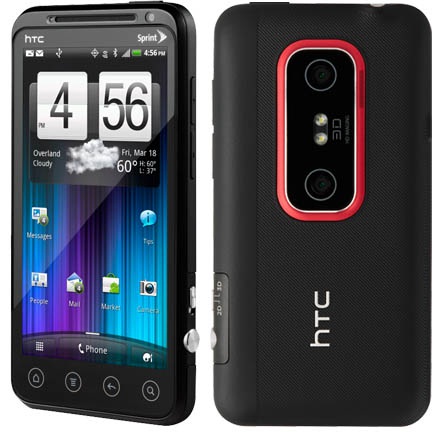
With its large and bright 4.7 inch super LCD screen, HTC TITAN combines high performance innovation
with a super-slim 9.9mm curved body made from a brushed aluminium shell that fits comfortably in your hand and exudes
style and quality. Price of HTC Titan in India is expected to be announced soon.
HTC TITAN is also the perfect portable office that enables efficient multitasking like viewing a presentation while
youfre on a conference call or listening to music while compiling an email. With its expansive screen with built
in Microsoft Office Mobile, this super smartphone enables you to create, edit and collaborate quickly and easily.
Advanced email features like Linked inboxes makes it easy to manage multiple email accounts, synchronize your to-do
list and calendars in one place, group contacts to make communication simpler and faster, and even store your latest
ideas and notes in the cloud with Microsoft OneNote. Typing on the HTC TITAN is quick and easy with the huge virtual
keyboard on the responsive 4.7 inch screen.
HTC Titan Feature & Specification
Size:131.5mm x 70.7mm x 9.9mm
5.18 x 2.78 x 0.39
Weight:160 grams (5.6 ounces) with battery
Display:4.7-inch touch screen with 480 x 800 resolution
Screen size: 119 mm (4.7)
CPU Processing Speed
1.5 GHz
Storage
Total storage: 16 GB
Available storage: up to 12.63 GB
RAM: 512 MB
Connectors
3.5 mm stereo audio jack
micro-USB 2.0 (5-pin) port
Sensors
Gyro Sensor
G-Sensor
Digital compass
Proximity sensor
Ambient light sensor
Multimedia
See photos from your camera, Facebook and Windows Live accounts in the Pictures hub
Music and Videos Hub powered by Zune lets you listen to radio, download music, and more
SRS enhancement
5.1 surround sound for video
Audio supported formats:
Playback: .m4a, .m4b, .mp3, .wma (Windows Media Audio 9)
Video supported formats:
Playback: .3gp, .3g2, .mp4, .m4v, .mbr, .wmv (Windows Media Video 9 and VC-1)
Recording: .mp4
Power & Battery
Battery type: Rechargeable Lithium-ion battery
Capacity: 1600 mAh
Talk time:
WCDMA: Up to 410 minutes
GSM: Up to 710 minutes
Standby time:
WCDMA: Up to 460 hours
GSM: Up to 360 hours
Network
HSPA/WCDMA:
Europe/Asia: 850/900/2100 MHz
Quad-band GSM/GPRS/EDGE:
850/900/1800/1900 MHz
Platform
Windows Phone OS 7.5
Camera
8 megapixel camera with F2.2 lens, dual LED flash, and BSI sensor (for better low-light captures)
Front camera: 1.3 megapixel front camera
HD video recording:
720p HD video recording
Internet
3G:
Up to 14.4 Mbps download speed
Up to 5.76 Mbps upload speed
GPRS:
Up to 80 kbps downloading
EDGE:
Up to 236.8 kbps downloading
Wi-Fi:
IEEE 802.11 b/g/n
Bluetooth
Bluetooth 2.1
A2DP for wireless stereo headsets
PBAP for phonebook access from the car kit
Other supported profiles: AVRCP, HFP, HSP
Social Networking
Twitter, Facebook and Windows Live
Share photos on Facebook or Windows Live SkyDrive
Location
Internal GPS antenna
HTC Locations
Bing Maps
Tethering
Internet Sharing
Recommended Windows System Requirements
Windows 7, Windows Vista, or Windows XP
Zune software
HTC Titan Price in India coming Soon.